W-2 Wage and Tax Statement
Employers that made payments of $600 or more for the year are required to file a Form W-2 for each employee.
If this is the first time you've run tax forms, you'll also be prompted to complete the setup process for Electronic Filing.
Run a W-2
-
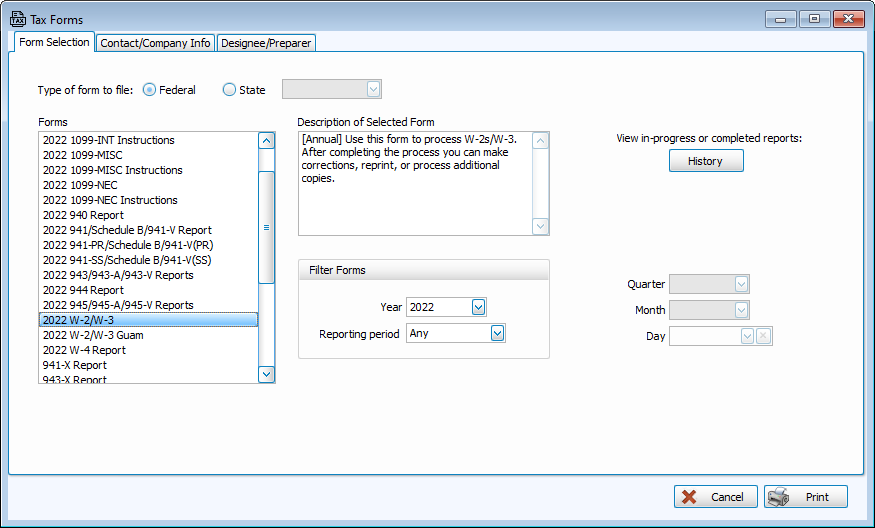
Navigate to Electronic Filing to open the Tax Forms screen.

-
Leave Federal forms selected and choose the 2022 W-2/W-3 from the list.
Note: Aatrix automatically updates tax forms as they become available. If prompted "Do you want to allow Aatrix to make changes to your computer, click Yes. Aatrix Updater troubleshooting support is available on their website.
-
Click Print.
-
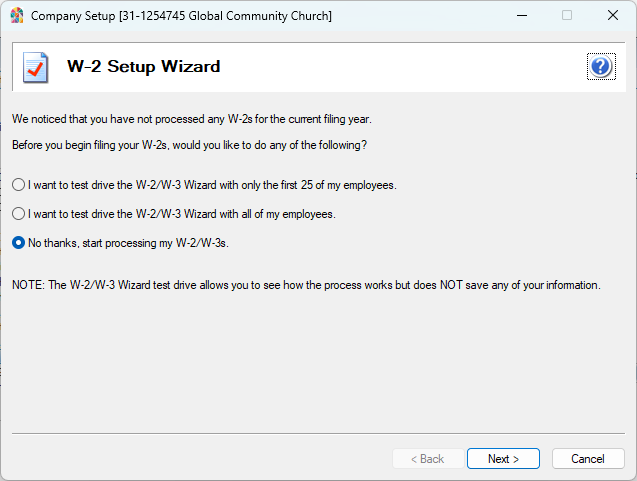
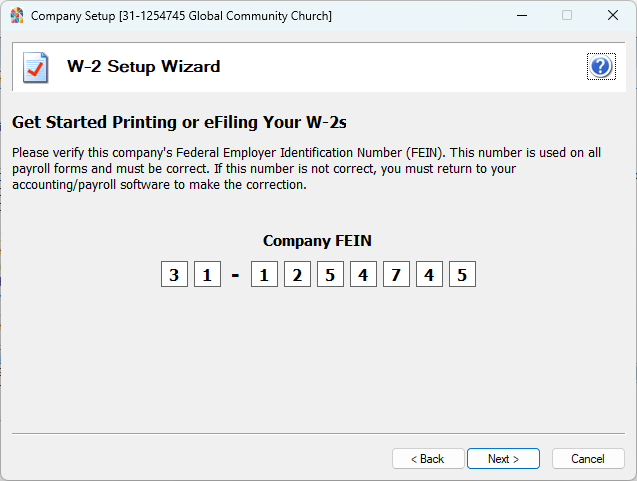
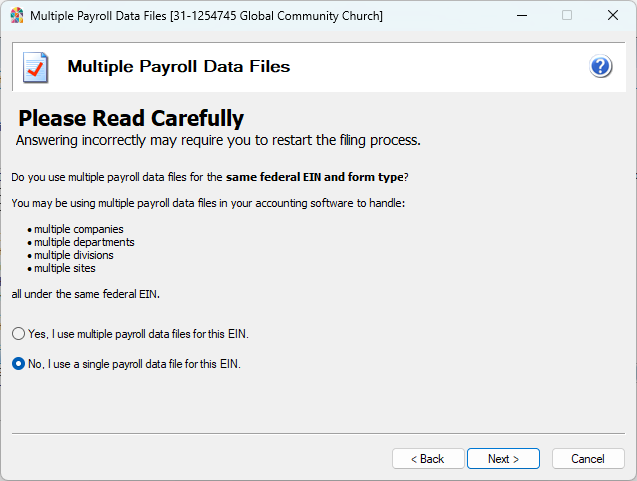
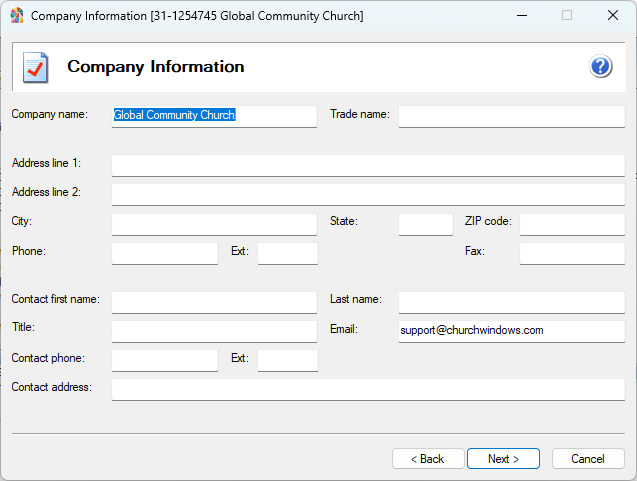
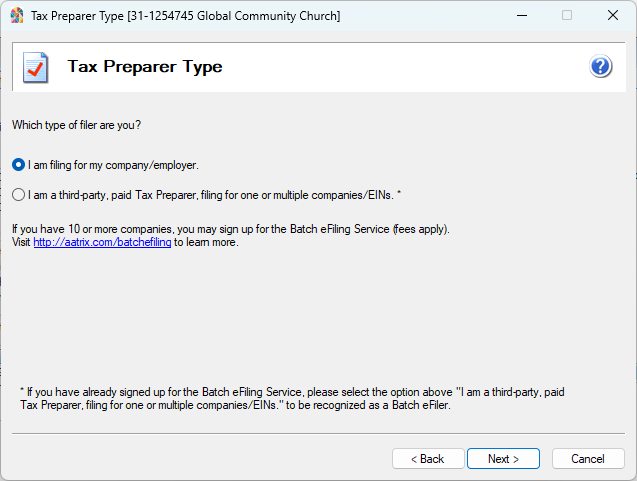
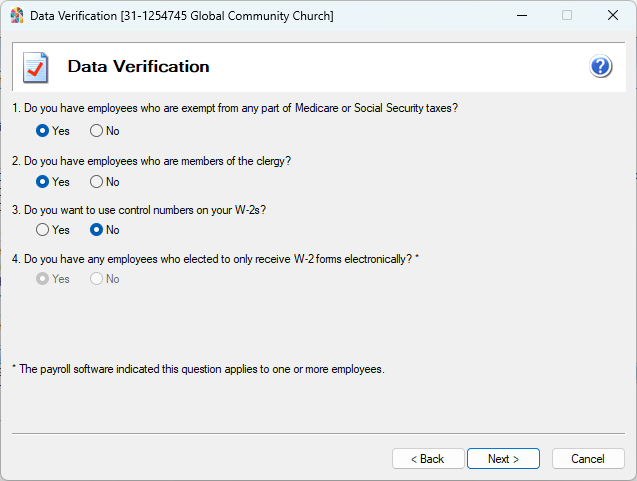
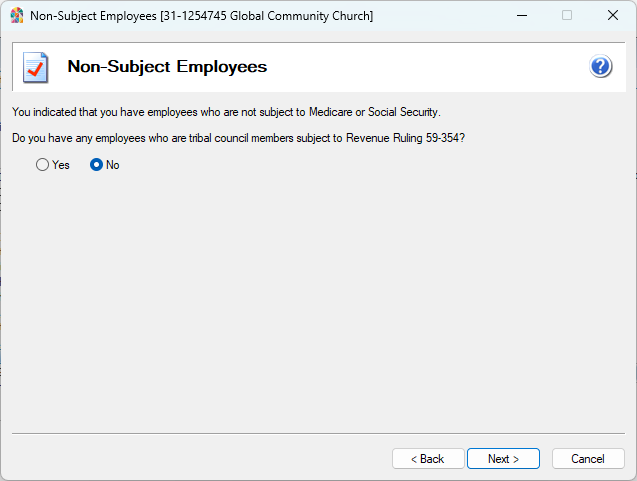
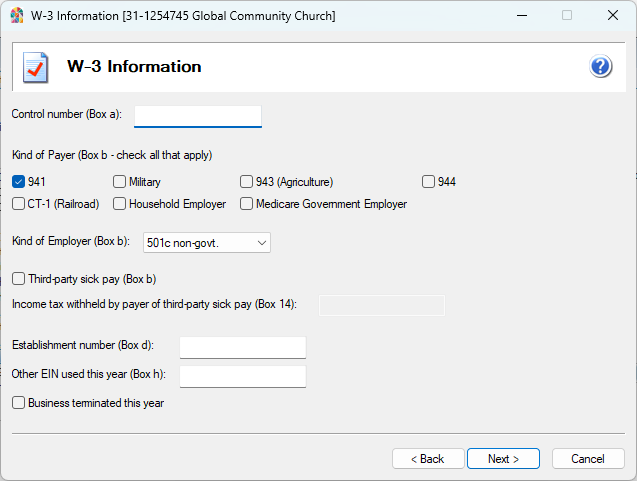
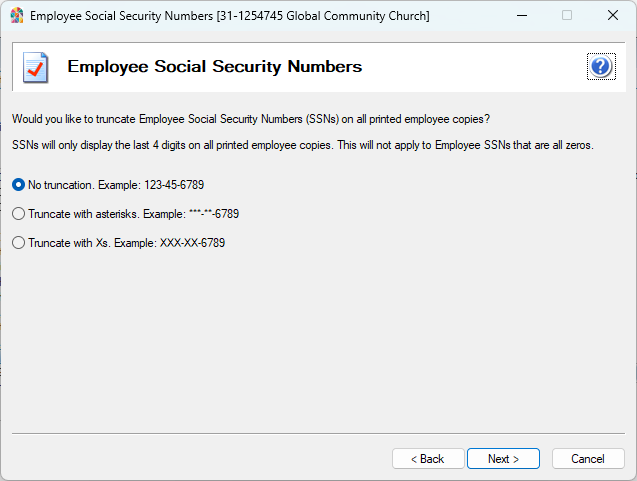
Complete the W2 Setup Wizard.
-
Verify Employee Information.
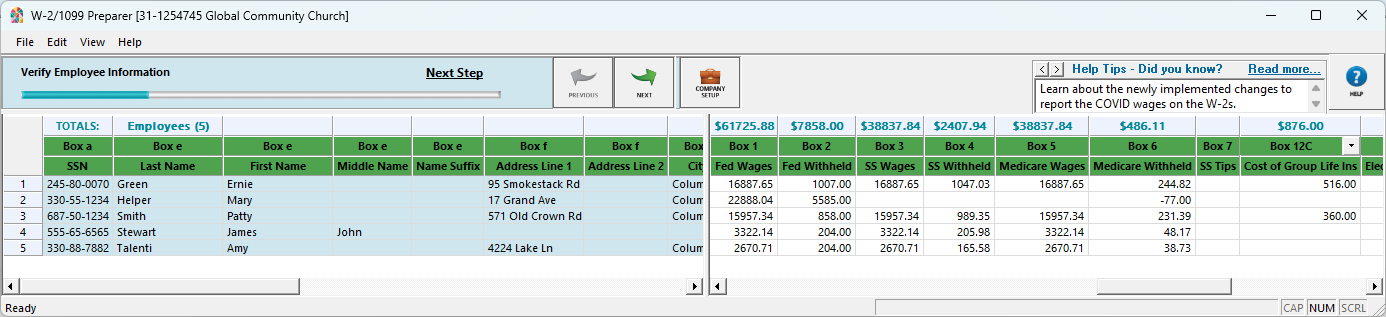
Click Next on the status bar at the top to find incomplete information

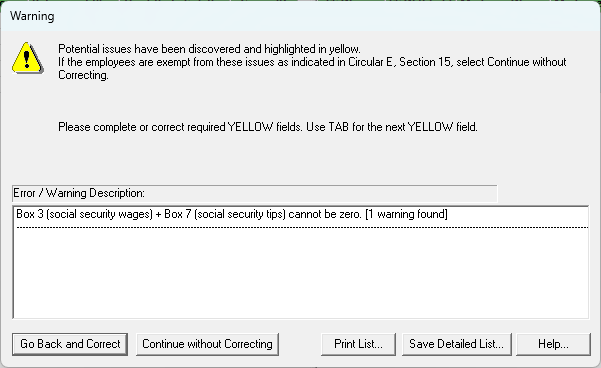
Note: Aatrix checks for data validity before proceeding to e-filing and print options. Warnings for no social security withheld for those with Minister box checked can be ignored by clicking Continue without Correcting .
-
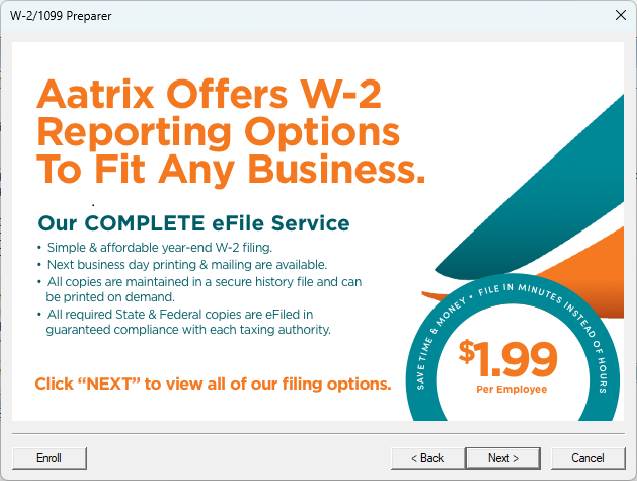
Click Next to continue to printing options.
-
Select whether you want to Print or eFile forms.
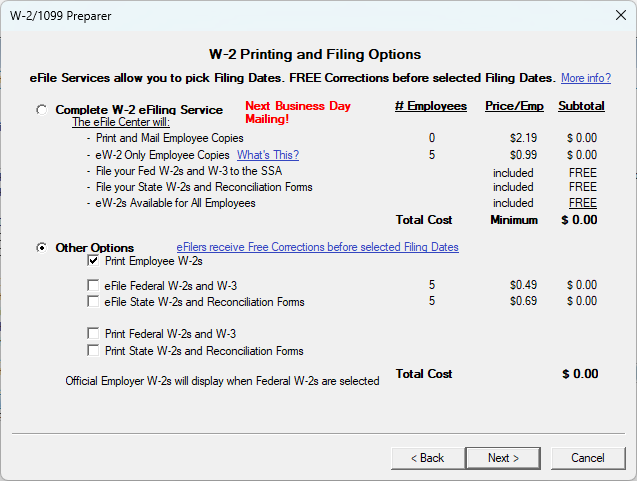
If you select to print, click Next on the following window to dismiss eFile option.
-
Review Data. This screen will summarize what reports have been generated.
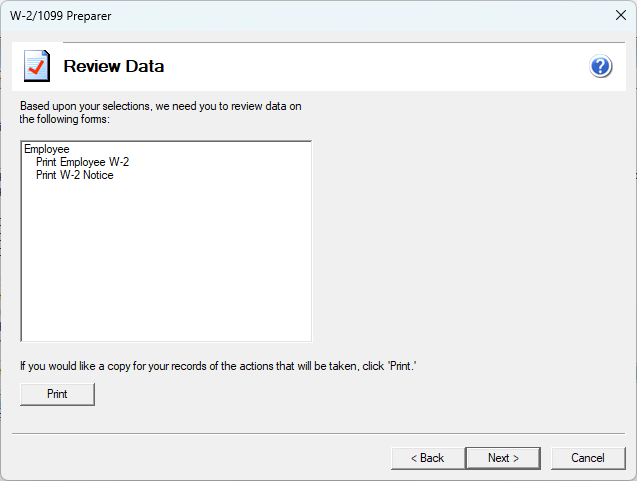
Click the Next to continue.
-
Print Forms. Click Print Final and then Next Step.
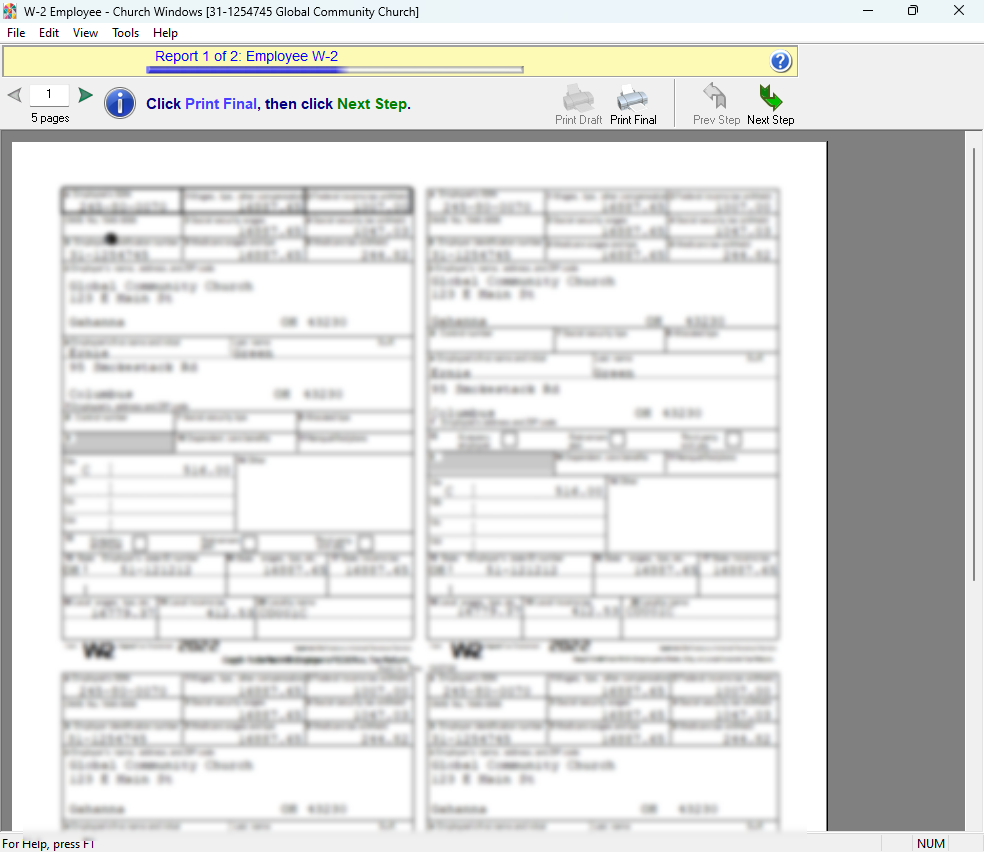
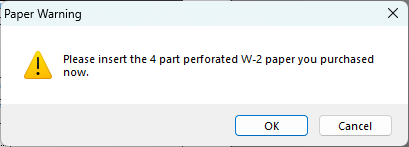
You'll get this alert to insert perforated W-2 forms. You can also print to plain paper and cut the form into quadrants.
-
Print Notice. Click Print Final and then Next Step.
-
W-2 History
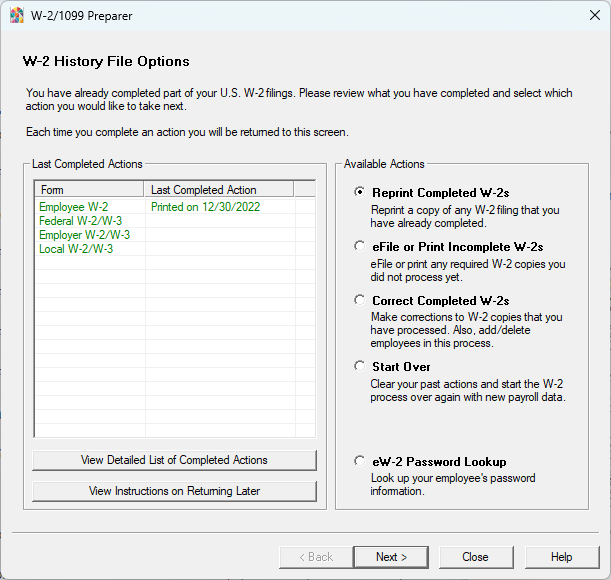
Form this screen you can complete a saved filing, reprint or correct completed W-2s, regenerate W-2s and access password look-up for e-filed W-2s. Return to this screen by clicking
 form the Tax forms screen.